Bitwarden Passkeys: Secure Windows 11 Without a Password

Imagine unlocking your digital vault with a simple biometric gesture, without ever typing a password. Since the November 2025 update, Windows 11 has turned this vision into reality by natively integrating third-party passkey managers like Bitwarden. This evolution marks a turning point in authentication security for millions of users of the open-source manager.
Bitwarden has progressively rolled out passkey support since late 2023, first for storing these access keys, then for unlocking the vault in web mode. Today, thanks to a new system API developed in collaboration with Microsoft, Bitwarden passkeys are integrated everywhere in Windows 11, from native applications to browsers. This guide will walk you through the setup step by step.
Understanding Passkeys: Reimagined Authentication
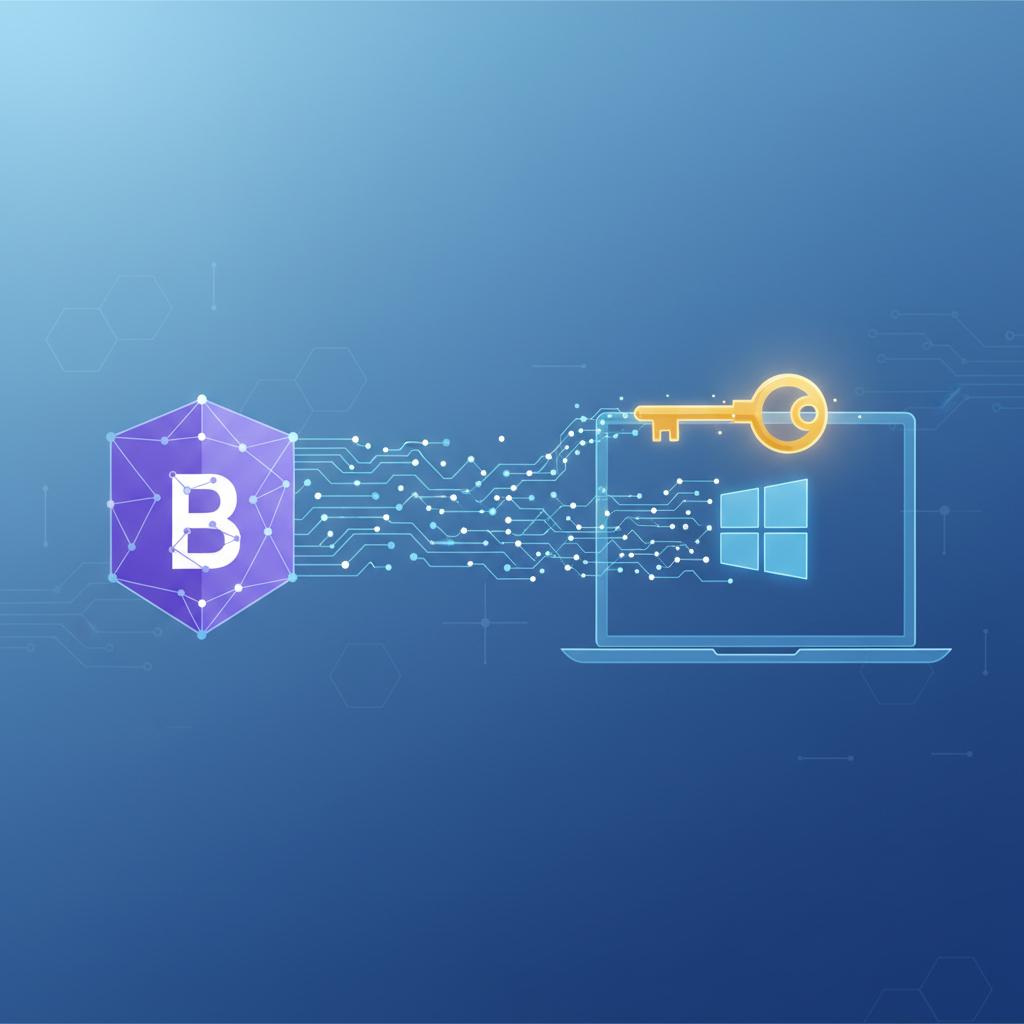
Passkeys represent an authentication method based on public-key cryptography. Unlike traditional passwords, these digital keys never leave your device. The principle? A pair of keys (public and private) is generated locally. The website only stores the public part, making any compromise by phishing or database theft impossible.
Authentication is performed via Windows Hello: facial recognition, fingerprint, or PIN. This biometric layer ensures that only you can use the passkey, even if someone physically accesses your machine. The PRF extension for WebAuthn then allows you to decrypt your Bitwarden vault while preserving end-to-end “zero-knowledge” encryption.
The advantages are numerous: elimination of password reuse risk, protection against remote attacks, and a fluid user experience. Microsoft and major industry players are banking on this technology to support the transition to a passwordless world.
Prerequisites: Compatible Versions and Hardware
Before you begin, ensure your environment meets the technical requirements.
Minimum software configuration:- Windows 11 with the November 2025 update (KB5068861) or later
- Bitwarden Desktop version 2024.9 or higher (earlier versions do not support the system provider)
- An active Bitwarden account (free or premium)
- A Windows Hello-compatible device (fingerprint reader, IR camera for facial recognition)
- Alternatively, a configured Windows PIN
If your Bitwarden version does not offer the passkeys option in the settings, download the latest stable version from the official website. Advanced users can test beta builds available on the GitHub repository to access features early.
To check your Windows version, open Settings → Windows Update → Update history. The presence of KB5068861 confirms native compatibility with third-party passkey providers.
Step-by-Step Configuration of Bitwarden as a Provider
The setup involves two phases: system-level activation, then creating your first passkey in Bitwarden.
Activate the Passkey Provider in Windows 11
Start by declaring Bitwarden as an authorized manager:
1. Open Windows Settings (Windows key + I) 2. Navigate to Accounts → Sign-in options 3. Locate the Passkeys section 4. Enable the “Passkey provider” option 5. In the dropdown list, select Bitwarden
This action tells Windows that Bitwarden becomes your default manager for all passkey authentication requests, whether they come from a browser, an application, or the system itself.
| Step | Action | Result |
|---|---|---|
| 1 | Open Windows Settings | Access system settings |
| 2 | Navigate to Accounts → Sign-in options | Section dedicated to authentication settings |
| 3 | Locate Passkeys | Access passkey management |
| 4 | Enable "Passkey provider" | Authorization of third-party managers |
| 5 | Choose Bitwarden from the list | Definition of Bitwarden as the default manager |
Create Your Bitwarden Passkey
Now, switch to the Bitwarden application:
1. Launch Bitwarden Desktop and log in with your master password 2. Go to Settings → Security → Passkeys 3. Click on “Create a passkey” 4. A Windows Hello prompt will appear: validate with your biometric method or PIN 5. The passkey is automatically generated and saved in your vault
This key instantly syncs across all your devices connected to your Bitwarden account, thanks to end-to-end cloud encryption. You can now log in to Bitwarden with this passkey, especially in web mode on vault.bitwarden.com.
Daily Use: Unlocking Your Vault
Once configured, your authentication routine becomes radically simpler.
On the Bitwarden web application:- Go to vault.bitwarden.com
- Instead of entering your email address and password, click on “Log in with a passkey”
- Select the Bitwarden source when Windows prompts you
- Validate via Windows Hello
In native Windows applications: When a WebAuthn-compatible application (Microsoft Store, Microsoft 365 services, etc.) requests authentication, Windows automatically presents Bitwarden as an option. Select it and confirm with your biometric method.
“Passwordless authentication reduces the risk of compromise by 99.9% while simplifying the user experience,” according to studies conducted by Microsoft security teams and the FIDO Alliance.
In browsers: The system integration also works for websites supporting passkeys. When creating or using a passkey, the browser detects Bitwarden as an available provider. This capability distinguishes Windows 11's native approach from traditional browser extensions.
Security Best Practices and Advanced Management
Adopting passkeys does not exempt you from rigorous digital hygiene.
Securing Windows Hello: Your Bitwarden passkey is only as secure as your Windows Hello authentication method. Prioritize biometrics (fingerprint or face) over a simple PIN. If you must use a PIN, choose a complex one with at least 8 characters combining numbers and letters.
Multi-device management: Bitwarden passkeys sync between your machines, but each device requires its own Windows Hello validation. On a new Windows 11 PC, install Bitwarden Desktop, log in once with your master password, then activate the passkey provider in the system settings.
Backup and recovery: Maintain backup access to your Bitwarden account. Write down your master password in a safe physical location or configure two-factor authentication (2FA) with a hardware key. In case of Windows Hello malfunction, you can still log in using the traditional method.
Regular audit: Bitwarden allows you to view the list of created passkeys in Settings → Security → Passkeys. Delete those associated with devices you no longer use. This precaution limits the attack surface in case of theft or resale of old equipment.
For users wishing to go further in optimizing their Windows 11 configuration, our guide on USB4 and Thunderbolt 5 explores best practices for secure connectivity for your peripherals.
Compatibility with Other Managers and Use Cases
Windows 11 is not limited to Bitwarden. The native API also supports 1Password, with other solutions to come. This interoperability offers valuable flexibility: you can test several managers before choosing the one that best suits your workflow.
Professional use cases: Organizations can deploy Bitwarden in self-hosted mode while benefiting from passkey support. SSO (Single Sign-On) integration allows combining enterprise authentication and passkeys for a balance between security and user experience.
Hybrid environments: If you alternate between Windows 11 and other platforms (macOS, Linux, mobile), Bitwarden syncs your passkeys across all systems. On mobile, authentication is done via Face ID, Touch ID, or Android fingerprint reader. This cross-platform consistency facilitates the transition to a passwordless ecosystem.
Current limitations: Passkey login in Bitwarden currently works in web mode and on compatible applications. The browser extension continues to use traditional authentication, although the development team is working to extend support. Regularly consult Bitwarden's official release notes to follow developments.
For professionals using complex setups with multiple screens and peripherals, securing authentication combines advantageously with modern hardware infrastructure. Our analysis of Thunderbolt 5 for mobile professional configurations details these synergies.
Outlook: Towards a Passwordless Ecosystem
Native integration of passkeys in Windows 11 marks a decisive step in the evolution of consumer IT security. Microsoft is investing heavily in this technology, both at the system level and with its own services (Microsoft accounts, Azure AD).
Collaboration between operating system publishers, browser developers, and password manager providers accelerates adoption. By 2026, analysts predict that passkeys will become the dominant authentication method for new online services.
For users, this transition means less daily friction and a drastic reduction in risks associated with compromised passwords. Businesses benefit from reduced support costs (password resets) and a smaller attack surface.
Bitwarden, as an open-source solution, plays a special role in this ecosystem. Unlike proprietary managers, its code can be audited by the community, strengthening the trust of users concerned with transparency. This philosophy aligns perfectly with the founding principles of passkeys: security by design, user control, and interoperability.
Future innovations will likely include passkey support for BIOS/UEFI level authentication, allowing the machine's boot process to be secured even without a physical password. Windows 11 lays the foundation for this silent revolution that redefines our relationship with digital authentication.