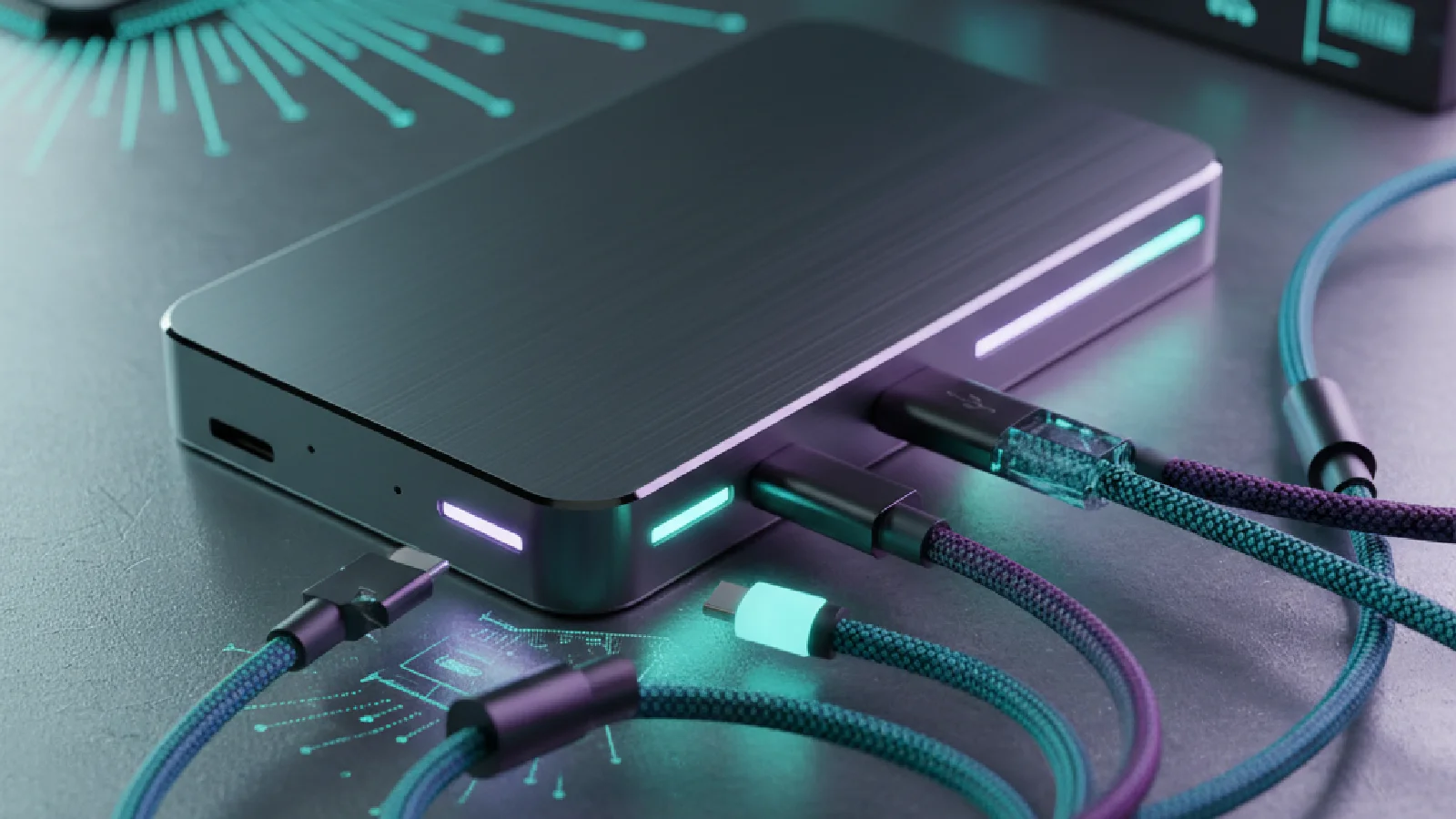
USB4 and Thunderbolt 5: The Complete Guide to Optimizing Your Setup
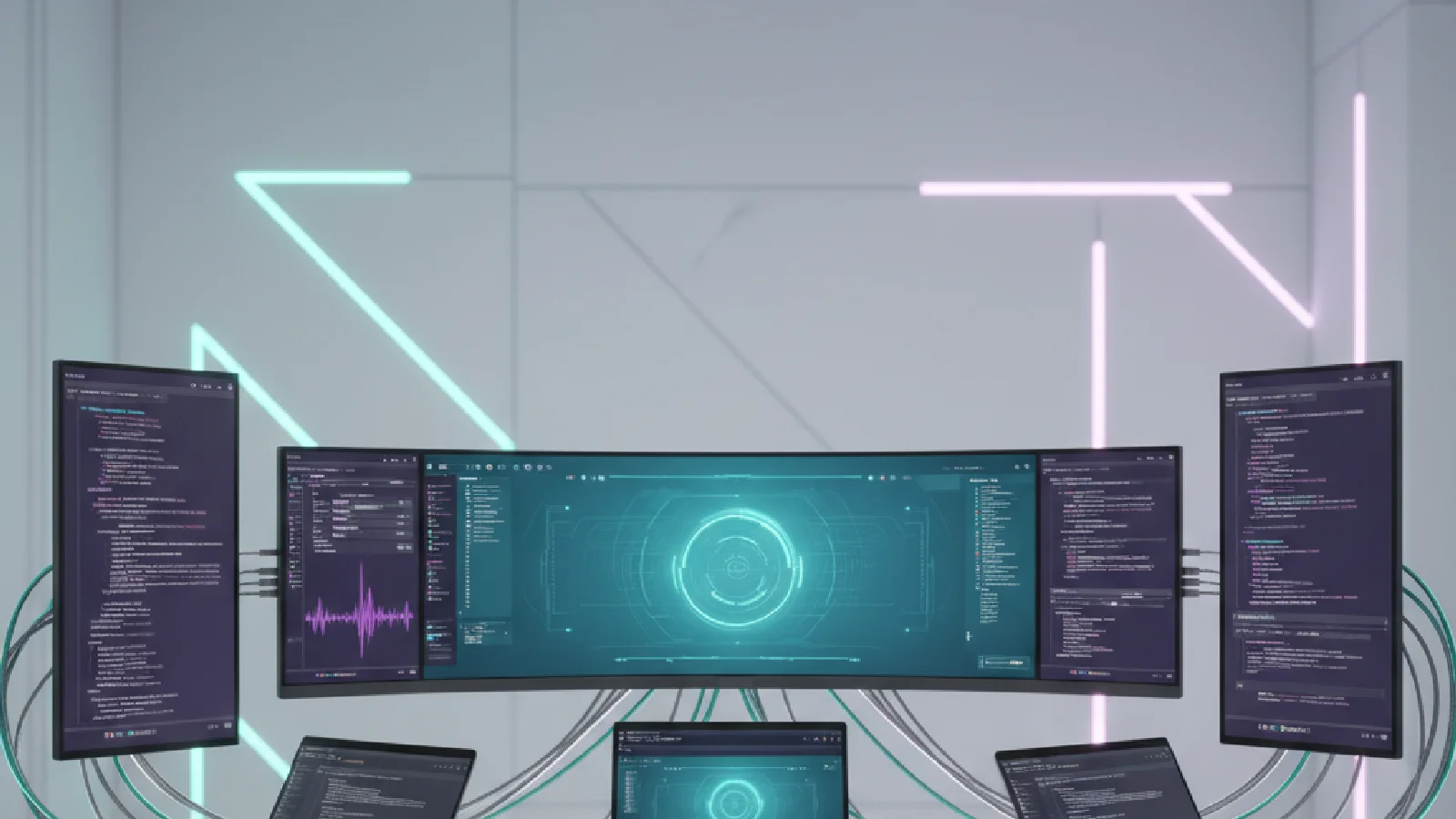
With the arrival of Thunderbolt 5 in 2025, wired connectivity takes a decisive leap forward. Bandwidth increases from 40 Gbps to 80 Gbps bidirectional, with a “Bandwidth Boost” mode reaching 120 Gbps for multi-screen setups. For video professionals, creatives, and demanding users, this evolution opens up unprecedented possibilities. But how can you fully leverage these capabilities with compatible docks and hubs on Mac and PC? Here's the complete guide to optimizing your setup.
Thunderbolt 5 vs. Thunderbolt 4: What Really Changes
Thunderbolt 5 represents the first major advance in wired connectivity in several years. According to iVANKY, the technology doubles the bandwidth of its predecessor, while maintaining full backward compatibility with Thunderbolt 4, Thunderbolt 3, and USB4.
Concrete Performance Gains
The main evolution lies in the bidirectional throughput: 80 Gbps compared to 40 Gbps for Thunderbolt 4. In Bandwidth Boost mode, the transparent bandwidth even reaches 120 Gbps for intensive video streams. Concretely, this means file transfers of up to 6,500 MB/s on external RAID configurations, drastically reducing access times for 4K or 6K RAW files.
Power delivery now reaches a maximum of 240 W (compared to 100 W for Thunderbolt 4), although most hubs are limited to 140 W to charge your laptop while powering multiple peripherals.
| Feature | Thunderbolt 4 | Thunderbolt 5 |
|---|---|---|
| Bandwidth | 40 Gbps | 80 Gbps (bidirectional) / 120 Gbps (Bandwidth Boost) |
| Power Delivery | 100 W | Up to 240 W (often 140 W on hubs) |
| Backward Compatibility | Yes | Full (Thunderbolt 4, Thunderbolt 3, USB4) |
| Max. File Transfer | N/A | 6,500 MB/s (on external RAID configurations) |

Who Is the Investment Really For?
For daily users who browse, use office applications, and stream videos, the difference remains imperceptible. A quality Thunderbolt 4 or USB-C docking station largely meets these needs.
However, for video editors, 3D artists, photographers, and professionals handling massive data flows, Thunderbolt 5 brings new fluidity. 8K workflows, high-speed external NVMe SSDs, and high-definition multi-screen configurations finally find a connection that meets their demands.
Choosing the Right Thunderbolt 5 Dock or Hub
The market for Thunderbolt 5 docking stations is starting to take shape. CalDigit offers two very comprehensive models with the TS5 Plus, while OWC is also launching its Thunderbolt 5 hub, specially designed for video professionals.
Essential Criteria
A high-performance Thunderbolt 5 hub should have at least three Thunderbolt 5 ports to allow peripheral daisy-chaining without sacrificing bandwidth. Also look for a balanced combination of ports:
- USB 3.2 Gen 2 X 4 for less demanding peripherals (keyboards, mice, printers)
- DisplayPort 2.1 for optimal compatibility with high-resolution screens
- 10 Gb Ethernet for workflows requiring ultra-fast network access
CalDigit TS5 Plus and OWC Thunderbolt 5 Hub models integrate these features, offering maximum flexibility for professional configurations.
Mac and PC Compatibility: Points to Note
On Mac, recent models equipped with M4 chips natively integrate Thunderbolt 5. Older Macs have Thunderbolt 4 or 3, but remain compatible thanks to the standard's full backward compatibility.
On PC, the situation is different: you need a motherboard with a dedicated USB4 connector or a Thunderbolt 5 controller to fully utilize the 80 Gbps. It is imperative to check your machine's specifications before investing in a high-end dock. For more information on specifications, Intel offers resources to understand Thunderbolt™ 5 for Gaming.
Optimizing Peripheral Distribution
Once equipped with a Thunderbolt 5 dock or hub, optimization involves intelligent distribution of peripherals according to their bandwidth needs.
Prioritize Thunderbolt 5 Ports
Reserve Thunderbolt 5 ports for bandwidth-intensive equipment:
- External NVMe SSDs for video editing or high-speed storage
- 4K, 5K, 6K monitors or multi-screen configurations (up to three 8K screens at 60 Hz on PC, two on Mac)
- External graphics cards (eGPU) to boost graphics performance
By activating Bandwidth Boost mode (120 Gbps), you can drive multiple high-definition screens without compression or latency, a major asset for creatives.
Delegate to USB 3.2 Gen 2 Ports
Low-bandwidth peripherals — keyboards, mice, webcams, printers — should be connected to USB 3.2 Gen 2 X 4 ports. This distribution avoids bottlenecks and preserves Thunderbolt 5 bandwidth for critical tasks.
Certified Cables: The Often Overlooked Element
A poor-quality cable can nullify the performance of an otherwise perfect Thunderbolt 5 setup. Opt for certified 80 Gbps bidirectional cables, preferably 2 meters maximum to ensure signal stability.
Official Thunderbolt 5 cables, although more expensive, ensure full compatibility with Bandwidth Boost mode and charging up to 240 W. A modest investment compared to the price of connected docks and peripherals.
Advanced Configurations: RAID and External Storage
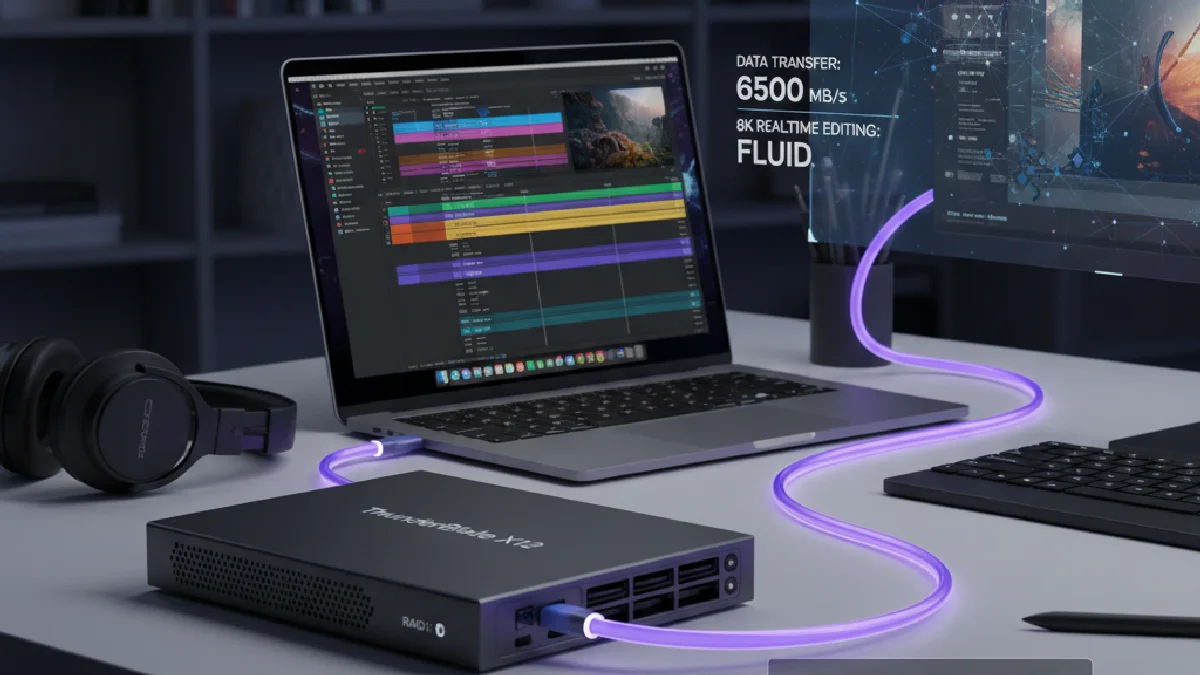
For video or virtual reality professionals, Thunderbolt 5 opens the way for ultra-high-performance external RAID configurations. Solutions like the ThunderBlade X12 fully leverage transfer rates of up to 6,500 MB/s, minimizing access times for RAW files or 4K/6K projects.
This speed transforms workflows: real-time 8K video editing becomes fluid, and renders accelerate significantly. All without requiring expensive internal storage, a substantial saving compared to Apple's prices for integrated SSDs.
“With Thunderbolt 5, why pay for internal storage when an external SSD offers equivalent performance at a fraction of the price?” — Reddit discussion on r/mac
This question, asked by many users, now has a clear answer: for intensive professional use, external Thunderbolt 5 storage is a credible and scalable alternative.
Power Management and Charge Distribution
Thunderbolt 5 docks generally integrate two USB controllers to optimize charge distribution among peripherals. Configure your operating system to recognize Thunderbolt 5 peripheral chains and optimize power management.
Most hubs deliver up to 140 W to charge your laptop while powering multiple peripherals simultaneously. Make sure the chosen dock offers sufficient power for your configuration: a 16-inch MacBook Pro consumes up to 140 W during fast charging.
Evolution Prospects and Future Investment
Thunderbolt 5 is part of a sustainability logic. Full backward compatibility with Thunderbolt 4, 3, and USB4 ensures that your current peripherals remain usable, while new equipment will gradually benefit from increased bandwidth.
The ecosystem is expanding rapidly: after the first CalDigit and OWC docks, other manufacturers are announcing solutions for 2025. Prices are expected to stabilize as production ramps up, making the technology more accessible.
For additional articles on recent connectivity developments, consult our guide on USB4 and Thunderbolt 5: The End of 20 Gbps SSD Enclosures or discover how RISC-V and Open Architectures are transforming the technological landscape.
A Pragmatic Approach for 2026
The adoption of Thunderbolt 5 should remain guided by your real needs. If your workflow relies on massive data transfers, multiple high-resolution screens, or external RAID storage, the investment is fully justified. Otherwise, a high-performance Thunderbolt 4 or USB4 solution remains amply sufficient.
The essential lies in a balanced configuration: a suitable dock, certified cables, intelligent peripheral distribution, and verified compatibility with your hardware. Thunderbolt 5 is not a technological fad, but a professional tool designed to support the evolution of intensive uses for several years.